 Hakan Çelik
· Hakan Çelik · OpenCV / Basic Operations · 3 dk okuma
Changing Color Spaces
Changing Color Spaces
Goals
- In this article, we will learn how to convert images from one color space to another, such as BGR to Gray, BGR to HSV, etc.
- In addition, we will create an application that allows extracting a colored object in a video.
- We will learn these functions: cv2.cvtColor(), cv2.inRange(), etc.
Changing Color Space
There are more than 150 color space conversion methods available in OpenCV, but we will look at the two most widely used ones: BGR <-> Gray and BGR <-> HSV.
To convert colors, we will use the cv2.cvtColor(input_image, flag) function, where the flag determines the type of color conversion. For BGR to gray (Gray) conversion, cv2.COLOR_BGR2GRAY is entered as the flag parameter. Similarly, for HSV conversion, cv2.COLOR_BGR2HSV is entered as the flag parameter.
If you want to access the list of all the more than 150 color conversions I just mentioned — i.e. all the parameters that the flag can take — it is enough to type the following code in the Python console.
import cv2
flags = [i for i in dir(cv2) if i.startswith('COLOR_')]
print(flags)
Note;
For HSV, the Hue range is [0,179], Saturation range is [0,255], and Value range is [0,255]. Different software use different scales. So if you are comparing OpenCV values with those, you need to normalize these ranges.
Object Tracking
Now that we know how to convert a BGR image to HSV, we can use this to extract a colored object. It is easier to represent a color in HSV than in RGB color space. In our application, we will try to extract a blue colored object. Here is the method:
- Take each frame of the video
- Convert from BGR to HSV color space
- Threshold the HSV image for a range of blue color
- Now extract the blue object alone; we can do whatever we want on that image.
Code and explanations:
import cv2
import numpy as np
cap = cv2.VideoCapture(0)
while True:
    # taking the video frame by frame
    _, frame = cap.read()
    # converting BGR to HSV
    hsv = cv2.cvtColor(frame, cv2.COLOR_BGR2HSV)
    # defining the range of blue color in HSV
    lower_blue = np.array([110,50,50])
    upper_blue = np.array([130,255,255])
    # Threshold the HSV image to get only blue colors
    mask = cv2.inRange(hsv, lower_blue, upper_blue)
    # Bitwise-AND mask and original image
    res = cv2.bitwise_and(frame,frame, mask= mask)
    cv2.imshow('frame',frame) # showing the normal image
    cv2.imshow('mask',mask) # masked image
    cv2.imshow('res',res) # showing the image where we captured only blue color
    k = cv2.waitKey(5) & 0xFF
    if k == 27:
        break
cv2.destroyAllWindows()
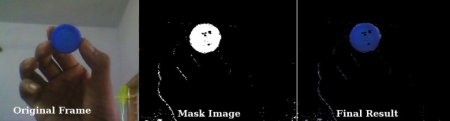
Our output will look like this.
How to Find HSV Values to Track?
This is a common question asked on stackoverflow.com. You can use the cv2.cvtColor() function. Let’s explain with an example: to find the HSV value of Green, it is enough to type the following commands in the Python terminal.
# the BGR color code for green is 0,255,0. If you wonder how to know the BGR codes of colors,
# web designers know this from CSS; those who don't can examine BGR(,,,) values at the following address:
# address: https://www.w3schools.com/colors/colors_picker.asp
>>> green = np.uint8([[[0,255,0 ]]])
>>> hsv_green = cv2.cvtColor(green,cv2.COLOR_BGR2HSV)
>>> print(hsv_green)
[[[ 60 255 255]]]