 Hakan Çelik
· Hakan Çelik · OpenCV / Image Processing · 3 dk okuma
Arithmetic Operations on Images

Arithmetic Operations on Images
Goals
We will learn several arithmetic operations on images such as addition, subtraction, bitwise operations, etc. You will learn these functions: cv2.add(), cv2.addWeighted(), etc.
Image Addition
You can add two images using the OpenCV function cv2.add() or simply by the numpy operation res = img1 + img2. Both images should be of same depth and type, or the second image can just be a scalar value.
Note;
There is a difference between OpenCV addition and Numpy addition. OpenCV addition is a saturated operation while Numpy addition is a modular operation.
For example;
>>> x = np.uint8([250])
>>> y = np.uint8([10])
>>> print(cv2.add(x,y)) # 250+10 = 260 => 255
[[255]]
>>> print(x+y)          # 250+10 = 260 % 256 = 4
[4]
This will be more visible when you add two images. OpenCV function will provide a better result. So always stick to OpenCV functions.
Image Blending
This is also image addition, but different weights are given to images so that it gives a feeling of blending or transparency. Images are added according to the equation below:  By varying
  from
from  , you can perform a cool transition between one image to another. Here I took two images to blend them together.
The first image is given a weight of 0.7 and the second image 0.3. cv2.addWeighted() applies the following equation to the image: 
Here  is taken as zero.
img1 = cv2.imread('ml.png')
img2 = cv2.imread('opencv_logo.jpg')
dst = cv2.addWeighted(img1,0.7,img2,0.3,0)
cv2.imshow('dst',dst)
cv2.waitKey(0)
cv2.destroyAllWindows()
result;
Bitwise Operations
This includes bitwise AND, OR, NOT, and XOR operations. They will be highly useful while extracting any part of the image (as we will see in coming chapters), defining and working with non-rectangular ROI etc.
Below we will see an example of how to change a particular region of an image.
I want to put the OpenCV logo above an image. If I add two images, it will change color. If it were a rectangular region, I could use ROI as we did in the last chapter. But the OpenCV logo is not a rectangular shape. So you can do it with bitwise operations as shown below:
# loading two images
img1 = cv2.imread('messi5.jpg')
img2 = cv2.imread('opencv_logo.png')

# I want to put logo on top-left corner, So I create a ROI
rows,cols,channels = img2.shape
roi = img1[0:rows, 0:cols ]

# Now create a mask of logo and create its inverse mask also
img2gray = cv2.cvtColor(img2,cv2.COLOR_BGR2GRAY)
ret, mask = cv2.threshold(img2gray, 10, 255, cv2.THRESH_BINARY)
mask_inv = cv2.bitwise_not(mask)

# Now black-out the area of logo in ROI
img1_bg = cv2.bitwise_and(roi,roi,mask = mask_inv)

# Take only region of logo from logo image.
img2_fg = cv2.bitwise_and(img2,img2,mask = mask)

# Put logo in ROI and modify the main image
dst = cv2.add(img1_bg,img2_fg)
img1[0:rows, 0:cols ] = dst

cv2.imshow('res',img1)
cv2.waitKey(0)
cv2.destroyAllWindows()
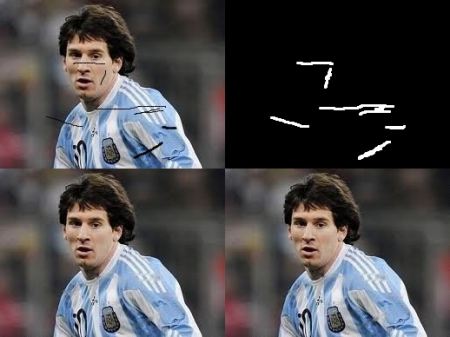
See the result below. The left image shows the mask we created. The right image shows the final result.